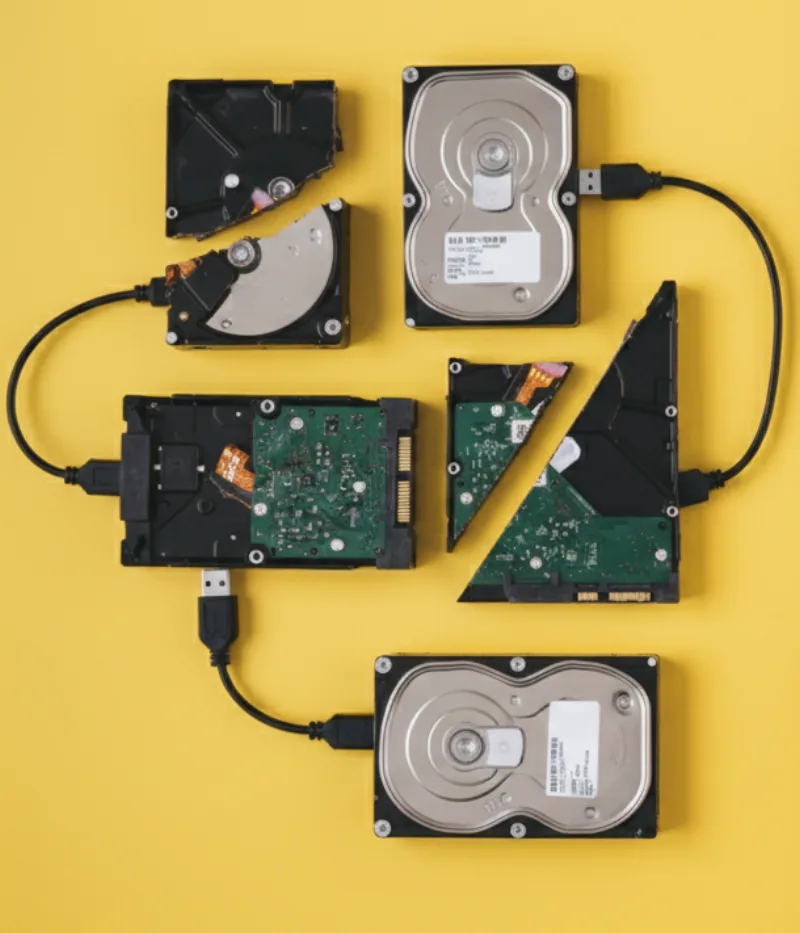
Backups aren’t “nice to have”. They’re what turns a disaster (ransomware, theft, hardware failure, accidental deletion) into a manageable inconvenience. This guide covers the simplest, most reliable approach we recommend to clients across New Zealand.
What should you back up?
- Business: shared files, accounting data, customer records, email/mailboxes, Microsoft 365/Google Workspace data, line-of-business apps.
- Home: photos/videos, device backups, important documents, password manager vaults, email.
The 3-2-1 rule (the simplest reliable strategy)
Use the 3-2-1 approach:
- 3 copies of your data (the original + 2 backups)
- 2 different storage types (e.g., external drive + cloud)
- 1 off-site (cloud or stored away from the device/location)
Cloud backup vs sync (important difference)
Services like OneDrive/Google Drive are great, but they’re primarily sync. If a ransomware attack encrypts files or someone deletes a folder, sync can replicate the damage. A true backup includes version history, retention, and ideally an immutable or isolated copy.
A practical setup (home + small business)
- Local backup to an external SSD/HDD (automated daily).
- Cloud backup with versioning and retention (automated).
- Quarterly restore test to confirm it actually works.
Ransomware protection tips
- Enable MFA on email and cloud accounts.
- Use a password manager and unique passwords.
- Separate admin accounts from daily-use accounts.
- Keep one backup copy “offline” (not always connected).
Related reading
If the worst happens, use this checklist to contain damage and recover safely: What to Do After a Cyber Attack: First 24‑Hour Response Plan.
Need a backup plan set up properly?
We can audit your current setup, implement a 3-2-1 plan, and test restores so you know you’re covered.